Help Kitchen Guide
How to create a QR code menu
A practical setup guide for restaurant owners. No app, no developer, no complicated rollout.
Updated May 14, 2026
Start with the guest moment
Do not begin with the QR code. Begin with the table: a guest sits down, scans, wants to understand the menu, and does not want to download an app.
Use clear categories, prices, short descriptions, allergens where relevant, and real dish photos only when they help the decision. Fix outdated menu content before you print table cards.
Use one stable menu link
Your QR code should point to one stable digital menu link. Do not create a new QR code every time you change a price, rename a dish, or add a language.
The printed code stays on the table. The menu behind it changes whenever you need it. That is the real advantage over a PDF that has to be reprinted.
Print for real tables
Place the QR code where guests naturally look: table tents, small cards, receipt inserts, window signs, or takeaway packaging. Keep the code large, high-contrast, and uncropped.
Before printing a full batch, scan one test card with iPhone and Android in daylight and in dim restaurant light. If scanning takes effort, the card is not ready.
What a good setup looks like
A QR menu is not finished when the code exists. It is finished when guests can scan it, read it, and staff can update it without another print run.
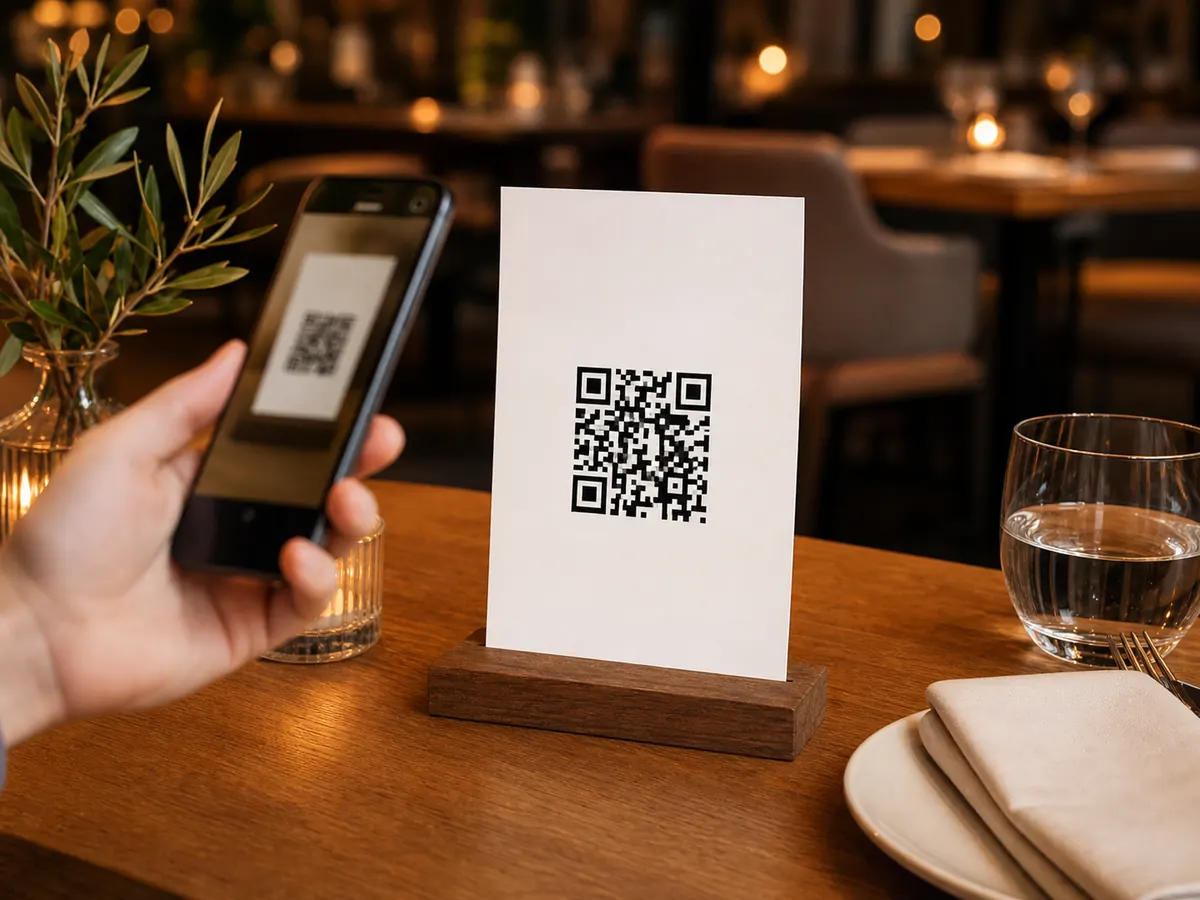
Scan from the seat
Place the card where a seated guest can scan without picking it up. Keep the code flat, upright, and surrounded by blank space.
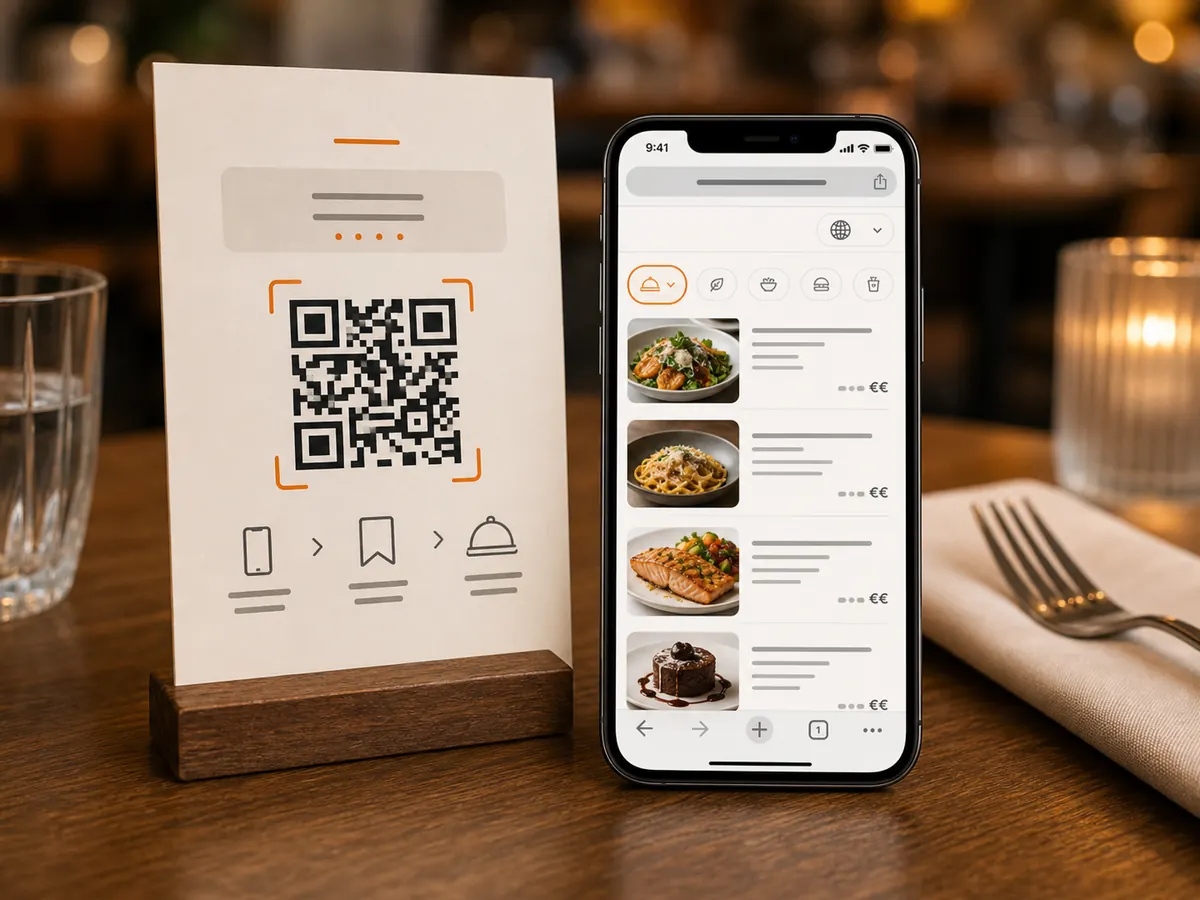
Open a real mobile menu
The scan should open a browser menu with categories, prices, photos, and language options, not a zoomed PDF.
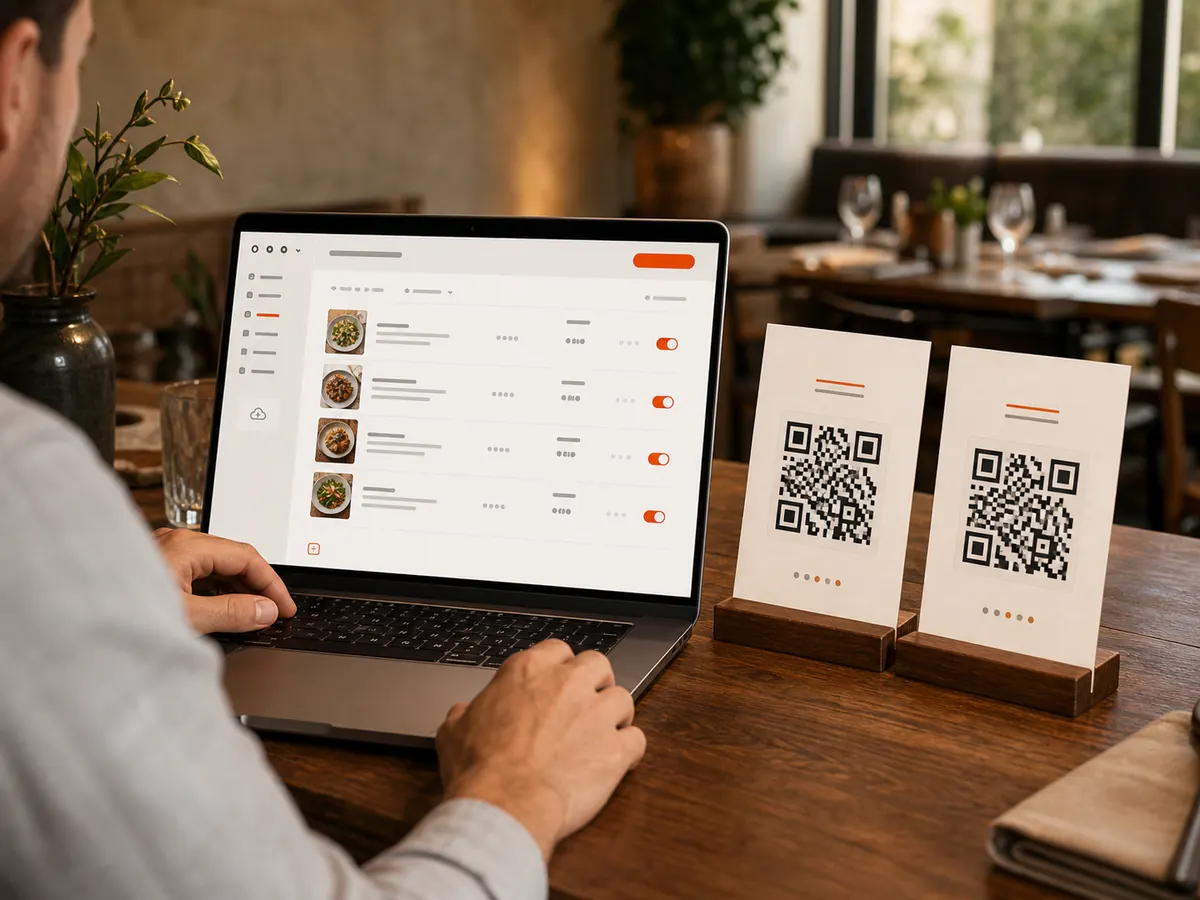
Edit without reprinting
Keep one printed QR code and change dishes, prices, or availability behind the link whenever service needs it.
The 5-minute field test
Before printing the full batch, test one table card in the same conditions your guests will use.
Distance
Sit down and scan from normal arm’s length. If you need to lean in, make the code larger.
Light
Try daylight, evening light, and the darkest table. Glossy paper and candle reflections can break scans.
Phone
Test one iPhone and one Android. Also check that the menu is readable without pinching.
Mistakes to avoid
Sending guests to a PDF only
PDF menus are often slow, hard to read on phones, and awkward to update. They can work as a fallback, but the main experience should be mobile-friendly.
Changing QR codes too often
The code on the table should be stable. Update the menu content behind the link instead of printing new codes for every small change.
Using vague table-card copy
A non-technical guest should know exactly what happens. Use direct wording such as “Scan to view our menu” instead of clever slogans.
Common questions
Do I need a different QR code for every language?
Usually no. A good digital menu can show language options after one scan, so the table card stays simple.
Can I update prices after printing the QR cards?
Yes. The printed QR code points to the menu link, while the menu content can be edited later.
Does it work without guest WiFi?
Yes, if guests have mobile data. Still, reliable WiFi in the restaurant helps, especially where table-side reception is weak.
Should I remove paper menus completely?
No. A small printed fallback is smart for accessibility, phone battery, and guests who dislike scanning. The QR menu should reduce friction, not remove hospitality.
Can a QR menu feel impersonal?
Yes, if it replaces service. Use it as a faster menu entry point while staff still welcomes guests and helps when needed.
Related QR menu guides
QR code size
Choose a size guests can scan from the seat, not only in a design preview.
PDF or digital menu
Decide when a PDF is enough and when it hurts the guest experience.
Print table cards
Check paper, contrast, holders, and table placement before printing a full batch.
Paper fallback
Keep QR menus practical without making service less human.